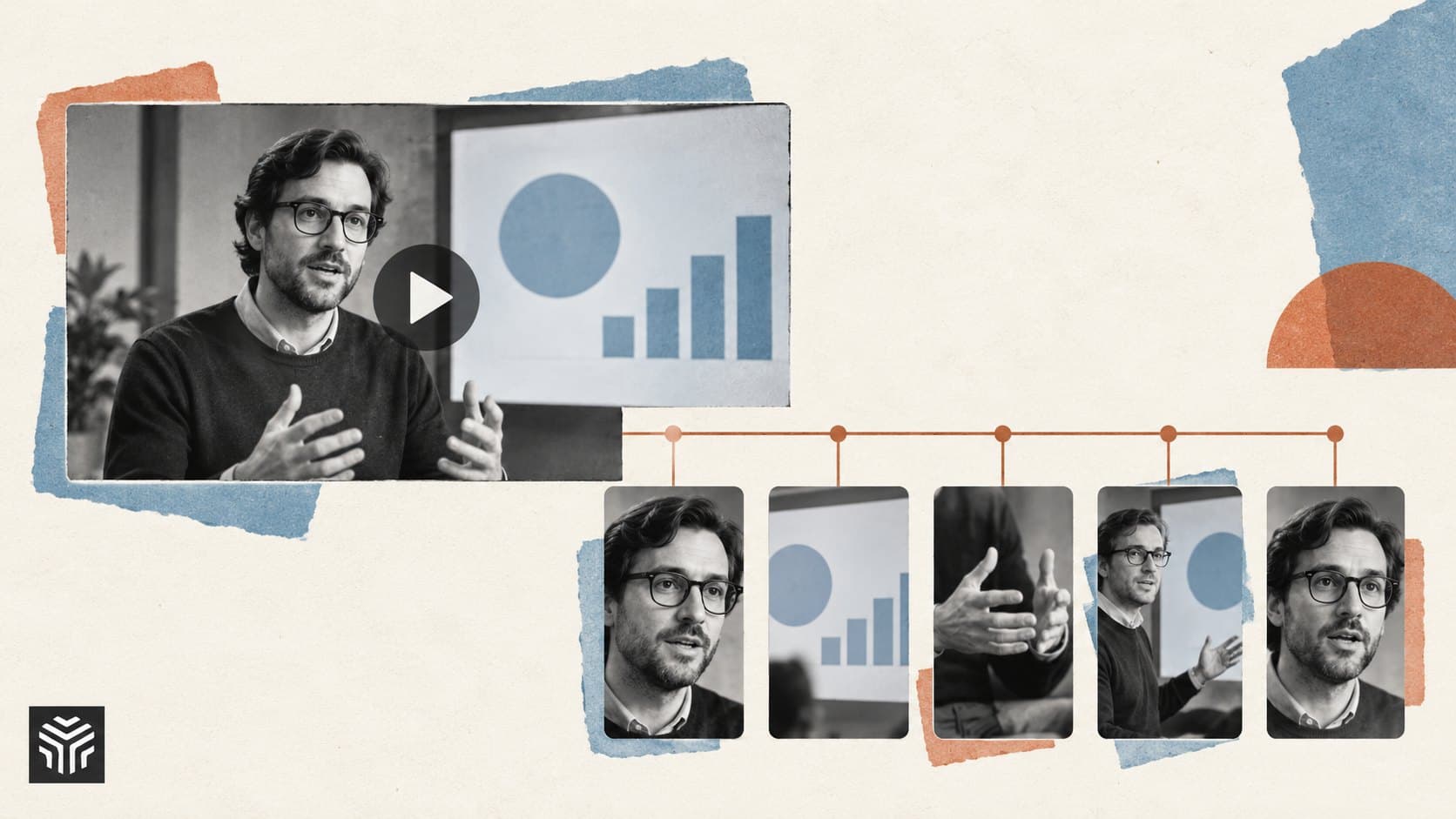
AI Video Repurposing: Turn One Webinar Into 5 Useful Clips
The webinar went well. Someone asked a question you hear on almost every sales call, and the guest gave a better answer than anything on your website. Then the recording landed in a folder, next to the last six webinars.
There’s a useful video in there. Finding it, cutting it, and making it work outside the original conversation is another job entirely.
AI video repurposing can help with that job. It uses tools such as transcription, suggested highlights, reframing, and captions to turn existing recordings into shorter pieces. The source is still your webinar, interview, or podcast. You’re giving people another way to encounter the material.
The following example works toward five clips from one webinar, each answering a different question. Some recordings will give you fewer. That’s fine. The useful answer buried in the middle is worth publishing even if nothing else makes the cut.
Start with a recording that has something to say
Before uploading an hour of footage, skim the transcript or your notes from the session. Look for a clear explanation, a specific example, a demonstration, or an answer that surprised you.
A recording with those moments gives you something to work with. A presentation that mostly repeats the homepage will need more than a tighter edit.
Check that the material still holds up. An old webinar might show an interface that has changed, quote retired pricing, or discuss a feature that never shipped. Review guest permissions and remove private information before sharing excerpts publicly.
For this guide, imagine a 40-minute webinar about putting an AI support assistant into use. It includes an explanation of what the assistant does, a product demonstration, advice on preparing a knowledge base, and an audience Q&A. That combination gives us several possible clips without asking each one to summarize the whole session.
Find five different reasons to watch
Webinar repurposing works better when you decide what each excerpt should help someone understand. Otherwise, it’s easy to end up with five versions of the speaker saying the product saves time.
Here are five possibilities for our fictional support webinar:
Clip | Moment to look for | Possible title | Why someone would watch |
|---|---|---|---|
A plain-language explanation | The speaker distinguishes a draft from an automated action | What an AI Support Assistant Actually Does | Understand the product category |
A mistake to avoid | An example of outdated source material producing a bad answer | Check Your Help Articles Before Adding AI | Avoid a problem during setup |
A short demonstration | One customer question moving through the workflow | From Customer Question to Reviewed Reply | See how the process works |
An audience answer | A response about when a person should take over | When Should AI Hand a Ticket to a Human? | Resolve a practical concern |
A preparation checklist | The speaker explains what to gather before a trial | What to Prepare for an AI Support Pilot | Take the next step |
These are directions for finding clips, not lines to put into the speaker’s mouth. If the webinar doesn’t contain one of them, choose another moment. Don’t manufacture a checklist because the table says you need one.
Keep the titles provisional until you’ve watched the final edits. A title should describe what the clip actually delivers.
Give AI clipping tools a specific assignment
An automatic selection can be a useful first pass through a long recording. It can also surface an energetic remark that makes little sense by itself.
Where a tool accepts topic instructions, tell it who the clips are for and which questions matter. With a timestamped transcript, you can also ask a writing assistant to identify candidate passages before opening the editor.
For our example, a useful request would be:
Review this timestamped webinar transcript for clips aimed at support managers considering an AI assistant. Find up to five distinct passages that answer practical questions. For each, give the existing start and end timestamps, the question it answers, and any context needed from earlier in the conversation. Keep the speaker’s wording unchanged. Flag passages that depend on a slide or screen demonstration. Return fewer than five if the material is repetitive or incomplete.
Compare those suggestions with the footage. A transcript won’t tell you that the speaker spent half the passage pointing to a chart, and generated timestamp suggestions can be wrong.
For each candidate, watch a little before and after the proposed boundaries. That surrounding material is where you may find the qualification that changes the whole answer.
Make every clip understandable on its own
Long-form to short-form video editing involves deciding how much context to carry into the new version.
Suppose a clip begins, “That’s why we stopped letting it do that.” The original audience knows what “it” and “that” mean. A new viewer doesn’t. You might need to include the previous question or add a short, accurate title identifying the subject.
An answer can also become misleading when shortened. “We cut handling time in half during a two-week test of password-reset tickets” makes a narrower claim than “We cut handling time in half.” The trial conditions belong with the result.
Trim greetings, repeated explanations, and pauses that interrupt the flow. Keep the examples and limitations the viewer needs to interpret the point. If the excerpt only becomes clear after you write a paragraph of explanation around it, another passage may make a better clip.
The same issue comes up in podcast repurposing. A guest’s punchiest sentence can depend on a question, a joke, or an earlier disagreement. Preserve enough of the exchange for the guest’s meaning to survive.
Match the tool to the amount of editing you need
Several products offer overlapping features. The more useful distinction is how you want to work after the first set of clips appears.
Tool | Documented capabilities relevant to repurposing | What to examine in your trial |
|---|---|---|
Automatic clipping, captions, reframing, and brand templates | Whether selected moments answer your audience’s questions and the crop preserves useful detail | |
Transcript-based editing, clip creation, captions, and audio enhancement | How easily you can adjust a passage and restore missing context | |
Suggested highlights, transcript-based clip selection, and adjustable layouts and captions | Whether the recording-to-clips process fits your existing production routine |
OpusClip describes selecting moments from longer recordings and supports prompts for finding particular content. That makes it relevant to a workflow where you want an initial set of candidates to review.
Descript combines text-based editing with clip creation and other editing tools. It’s worth examining when you expect to work closely with the transcript and refine the cuts yourself.
Riverside’s Magic Clips supports automatic suggestions as well as selecting passages from a transcript, with controls for duration, dimensions, and layout. If you already record there, test the process before adding another application.
These are feature-based starting points, not a hands-on ranking. Run the same recording through your shortlist and compare the final exports. Include the time needed to fix each one. A larger batch of suggested clips isn’t especially helpful if you spend the afternoon repairing them.
If you’re deciding between a few options, our guide on how to compare AI tools walks you through testing them on the same task and weighing the results against cost and cleanup time.
Reframe the content people need to see
Automated video editing can handle a first crop, but a speaker’s face isn’t always the important part of the shot.
In our support webinar, the demonstration might show a question on the left and a suggested answer on the right. A vertical crop centered on the presenter could hide both. You’d have a well-framed person explaining something the viewer can’t see.
For that section, consider keeping the interface wide, enlarging one part at a time, or switching between a speaker view and a screen view. A longer landscape demo may serve the subject better than a tightly cropped vertical clip.
Talking-head excerpts have different needs. Watch for abrupt crop changes when a second speaker interrupts or the active-speaker view switches. Check the export rather than relying entirely on the editor’s preview.
Good social media video clips make the key detail readable on a phone. Leave space for captions and inspect what happens when the player’s controls appear. Your source citation or product result shouldn’t disappear behind a text overlay.
Fix captions where mistakes matter most
Review names, product terms, acronyms, and numbers against the audio. Those are details an audience may rely on, and a plausible-looking transcription error can be easy to miss.
A caption that drops “not” can reverse the speaker’s advice. “Fifteen” becoming “fifty” changes a result. If the audio is unclear, replay it or ask the speaker rather than guessing from context.
Keep captions faithful to what was said. If you want a shorter explanation, use it as separate on-screen copy or a post description. Presenting a polished rewrite as a verbatim caption can create a mismatch with the recording.
Once the wording is right, watch without sound. Can you follow the explanation at that reading speed? Do the line breaks separate words that belong together? Is a long sentence still visible long enough to finish?
If captions overwhelm the shot, simplify their styling or adjust the edit before shrinking the text.
Publish each clip with its own purpose
The explanation clip could introduce the topic to a new audience. The demonstration could sit beside a product walkthrough. The audience answer might help a salesperson respond to a recurring question. They don’t all need the same ending.
Write a description that names the issue being discussed. “When should a support assistant ask a human to take over?” gives someone a reason to watch. “Another great moment from our webinar” leaves them to figure it out.
Make the next step relevant. Link to the full session when it contains the deeper explanation. Point to a setup guide when the clip is about preparation. For a useful standalone answer, you may not need a sales prompt at all.
Before scheduling the batch, watch the clips consecutively. If three cover essentially the same point, choose the clearest one. Keep the rest as alternatives rather than filling the calendar with repetition.
Measure the clips you can actually use
A useful first measure is the share of suggested clips that become publishable after review.
For example, if a tool suggests 12 clips and four survive your editorial checks, you have four finished assets. Note why the others were rejected: repeated ideas, missing context, unreadable screens, or a weak answer. Those observations will help you improve the next brief or compare tools.
Also track total editing and review time. Saving ten minutes on the initial cut means little if caption corrections and reframing take an extra hour.
After publishing, choose measures that match the clip’s purpose. A demonstration might be judged by visits to the relevant product page. An educational answer may be useful because it attracts questions from the right audience or gets reused by your team. Compare viewing and engagement results within similar placements, since platforms define and count views differently.
Start with one recording and a small set of candidates. When you find the answer you remember from the live session, give it enough space to make sense. That’s the version worth publishing.
Frequently asked questions
What is AI video repurposing?
AI video repurposing uses software to help adapt existing footage into new pieces of content. Common tasks include finding candidate highlights, editing through a transcript, adding captions, and reframing footage. The finished clips still need review for accuracy and context.
Can AI turn a webinar into short clips automatically?
Tools such as OpusClip and Riverside Magic Clips offer automatic clip suggestions. Treat them as draft selections: check where each excerpt starts and ends, what it leaves out, and whether the visuals still make sense. Their relevant features are linked in the comparison above.
How many clips should you make from one webinar?
Make as many as there are distinct, complete ideas worth sharing. Five is a planning example in this guide. A focused discussion may produce several strong clips; a longer recording may offer only one or two.
Do you need a separate tool for podcast repurposing?
Not necessarily. If your current editor already supports transcript search, captions, and alternate layouts, try those features first. Compare a dedicated clipping tool when finding candidate passages is taking more time than you can reasonably spend.
Should every clip be vertical?
Choose the shape around the content and intended placement. A vertical speaker clip may work well, while a detailed screen demonstration may need a wider layout to stay readable. Reframing should preserve the information that makes the excerpt useful.
Keep reading
How to Make an AI Product Launch Video People Understand.
A good launch video makes your product easy to understand before asking anyone to try it. Here’s how to choose the story, show the software, and use AI tools without losing the details that matter.

How to Compare AI Tools: A Practical Guide Before You Pay
Choosing an AI tool takes more than reading a feature list. This guide shows you how to test real tasks, compare total costs, and score your options before committing to a subscription.

All-in-One AI Platforms vs Separate Subscriptions: Which Makes Sense?
Real 2026 pricing for direct AI subscriptions vs. multi-model aggregators, plus the hidden cost — shrinking credit allowances — most comparisons skip.