How Color Grading Creates a Consistent Visual Style for SaaS Product Videos
TL;DR: SaaS product videos often combine screen recordings, product shots, talking-head footage, animations, and stock clips. Without a shared visual treatment, these pieces can feel disconnected. Color grading helps bring them together by creating a repeatable mood, contrast level, and color palette. A simple grading system can make product videos feel more consistent across demos, launches, tutorials, and social content.
Introduction
A SaaS product video can have a clear script and strong visuals, yet still feel unfinished. One scene may look warm and bright, while the next looks cool and flat. A screen recording may have clean colors, but the presenter beside it may have a completely different tone.
This is where color grading becomes useful. It gives different shots a shared visual treatment, helping the video feel like one piece of content instead of several clips placed together.
For SaaS teams, consistency matters because product videos often appear across many touchpoints. A company may create a product demo, feature announcement, onboarding video, sales presentation, and short social clip from related footage. If each video has a different visual style, the brand can become harder to recognize.
Color grading doesn't mean making every shot look identical. It means making intentional choices about color, brightness, contrast, and mood so the footage supports the same visual identity.
This guide explains how color grading works for SaaS videos, how to build a repeatable style, and how modern editing workflows can make the process easier.
Why does color grading matter for SaaS videos?
Color grading helps SaaS videos look visually connected by giving different shots a consistent treatment. It can balance differences in lighting, shape the mood, and reinforce a brand's visual identity without changing the actual content.
Consider a product video with four types of footage:
A founder speaking to the camera
A screen recording of the software
A close-up of the product or workspace
Supporting stock footage
Each source may have different lighting and color characteristics. Even when the cuts are technically clean, the changes can feel distracting.
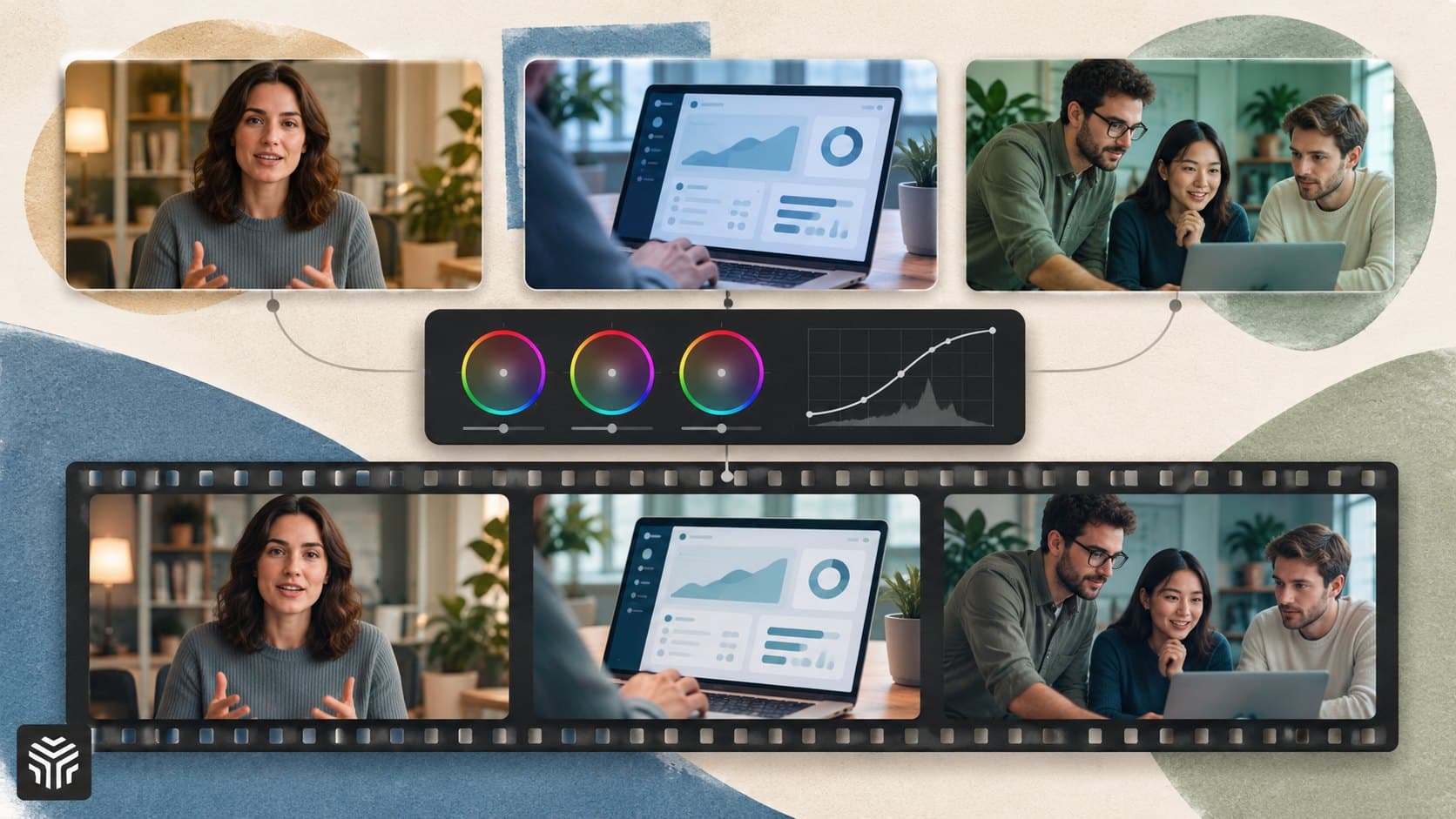
Color grading creates a visual bridge between those shots. You might use slightly cooler shadows, softer highlights, or a controlled saturation level across the sequence.
This is especially useful when SaaS teams reuse footage. A consistent grade can become part of a broader production system rather than something decided from scratch for every video.
It also helps separate color correction from creative grading. Correction focuses on making footage balanced, while grading shapes its final visual character. A strong workflow usually handles basic correction before applying the creative look.
What makes a SaaS color style consistent?
A consistent SaaS color style comes from repeatable choices, not one filter. Define a small set of rules for exposure, contrast, temperature, saturation, skin tones, and brand colors, then apply those rules across related videos.
Start by deciding what the footage should feel like. A cybersecurity company may prefer a controlled, darker look, while an education platform may choose a brighter and warmer appearance.
The goal isn't to force every brand into a certain style. The goal is to make the style intentional.
A simple visual guide can include:
Contrast: Decide whether your videos should feel soft or punchy.
Temperature: Choose whether the overall image leans warm, cool, or neutral.
Saturation: Set a general range so colors don't become too strong.
Skin tones: Keep people looking natural even when the broader grade is stylized.
Brand colors: Decide when and where specific brand colors should stand out.
Highlights and shadows: Keep brightness levels consistent between related shots.
You can then use this guide when producing new videos. This reduces guesswork and makes it easier for different editors to follow the same visual direction.
For more control, professional color workflows can use tools such as color wheels, curves, qualifiers, LUTs, and scopes. These tools allow editors to make targeted adjustments instead of applying the same effect blindly to every clip.
A practical color grading workflow
A useful workflow starts with correction and ends with a creative look. Trying to create a cinematic style before fixing obvious exposure or color differences can make the final sequence harder to control.
1. Match the footage first
Look at neighboring shots together. Check exposure, white balance, contrast, and saturation.
If one clip is noticeably darker than the next, correct that difference before applying the broader style.
2. Build the creative look
Once the footage is balanced, adjust the overall mood. You might lower saturation slightly, warm the highlights, or create more separation between shadows and midtones.
Keep changes small at first. A subtle treatment is easier to repeat across different types of footage.
3. Check important brand elements
Look at logos, interface colors, product screens, and other brand assets. A heavy grade can change how these elements appear.
For SaaS videos, this matters because the product interface itself is often part of the story. You don't want a creative effect to make important UI elements difficult to read.
4. Compare shots during playback
Don't judge clips only as individual frames. Watch the sequence.
A grade that looks attractive on one shot may create an obvious jump when the next clip appears. Invideo editor's color workspace, for example, recommends comparing a selected shot with neighboring footage during playback rather than assuming identical slider values will create identical results.
How can AI help with color grading?
AI can assist with repetitive color work by applying requested adjustments, matching a reference look, or helping revise grades. Human review is still important because footage, lighting, skin tones, and brand requirements can vary from shot to shot.
This is where AI-assisted editing can fit into a larger production workflow.
Instead of manually repeating a basic adjustment across many clips, an editor can describe the intended treatment and then review the result. That can be useful when a SaaS team has a large amount of footage or needs several versions of the same video.
For example, an editor might want to make a sequence slightly warmer while keeping skin tones natural. The AI can provide a starting point, while the editor decides whether the result actually works.
Invideo editor supports AI-assisted color workflows alongside manual controls. Users can describe a desired treatment, provide a reference image, and then refine the result using color controls such as wheels and curves.
The same principle applies to agentic editing. AI video editing is moving beyond single prompts to directed workflows where users can assign connected tasks, review the result, and request changes while retaining control over the timeline.
That distinction matters for professional content teams. AI can handle repetitive production work, but the editor still decides whether the visual treatment supports the message.
Where color grading fits into the SaaS video workflow
Color grading works best when it isn't treated as the final rescue step. It should fit into the wider production process.
A typical SaaS workflow might look like this:
Plan → Record → Edit → Correct → Grade → Review → Export
During planning, decide which videos should share the same visual style. This is particularly useful for product launches where several assets are created from the same campaign.
During editing, focus on the story first. Make sure the product demonstration is clear before spending time on detailed color work.
During correction, fix differences between shots. Then use color grading to create the final look.
Finally, review the entire video. Check the product interface, presenter footage, graphics, and supporting visuals together.
A browser-based workflow can keep these stages closer together. Invideo editor combines a multitrack timeline with color controls and AI editing assistance, allowing users to work on the same edit rather than moving the project between separate stages.
Teams that also need basic editing, captions, resizing, and other finishing tasks can explore an online video editor as part of the same broader workflow.
Common color grading mistakes to avoid
A consistent visual style doesn't mean every clip should receive the exact same settings. Different lighting conditions require different adjustments.
Here are some common mistakes:
Applying one preset to everything
A preset can provide a useful starting point, but it may not work equally well on indoor footage, outdoor footage, screen recordings, and talking heads.
Making colors too strong
High saturation can look impressive in a single frame but become tiring across a complete video. Strong colors can also affect the appearance of product interfaces.
Ignoring skin tones
If people appear too orange, green, or pale, viewers may notice the problem even when they can't explain why the image feels wrong.
Grading before correcting
Creative grading works better after basic exposure and color problems are addressed. Otherwise, you may end up trying to fix technical problems with creative adjustments.
Matching numbers instead of images
Two clips can use identical adjustment values and still look different. Camera settings, lighting, exposure, and the original colors all affect the result.
Forgetting the full sequence
Always watch the complete video. Consistency is judged by how shots work together, not only by how each clip looks alone.
For editors who want deeper control, the color workflow in Invideo editor includes color wheels, curves, qualifiers, masks, LUT support, and scopes such as waveform, RGB parade, vectorscope, and histogram.
How should SaaS teams build a repeatable style?
SaaS teams can create a repeatable color style by documenting a few visual rules and using them as a reference for every related video. The guide doesn't need to be complex. It only needs to make key decisions clear enough for editors to reproduce.
Create a short visual style sheet with examples. Include a preferred reference frame and notes about contrast, temperature, saturation, and brand colors.
Then create a small library of approved looks for different content types.
For example:
Product demos: Neutral colors that keep the interface easy to read
Customer stories: Natural skin tones with a slightly warmer treatment
Feature launches: Stronger brand colors used selectively
Educational videos: Clean contrast and a balanced appearance
Social clips: A recognizable treatment that survives smaller screens
The goal is consistency without removing creative judgment.
If your team uses AI-assisted workflows, save reference images and written descriptions alongside the style guide. This gives editors a clearer starting point when creating new versions.
For teams working with more complex production tasks, an agentic video editor can also help handle connected editing instructions while the editor reviews the resulting timeline.
Frequently Asked Questions
What is color grading in video editing?
Color grading is the creative process of shaping the colors, contrast, brightness, and overall visual mood of footage. It usually follows basic color correction. For SaaS videos, grading can help different sources, such as screen recordings and camera footage, feel more visually connected.
What is the difference between color correction and color grading?
Color correction focuses on creating a balanced image. It can involve fixing exposure, white balance, and unwanted color casts. Color grading comes afterward and shapes the creative appearance of the footage. Both can be part of the same editing workflow.
Does every SaaS video need the same color grade?
No. Related videos can share a visual language without using identical settings. A product demo may need a neutral treatment for interface clarity, while a customer story may benefit from a warmer look. Consistency comes from shared visual rules rather than identical adjustments.
Can AI perform color grading?
AI can assist with some grading tasks, including applying requested looks or working from a visual reference. However, the result still needs human review. Different lighting, cameras, skin tones, and product colors can require manual adjustments.
Can I use a reference image for color grading?
Yes. Some modern editing workflows allow an editor to provide a reference image and use it as guidance for the desired look. Invideo editor supports reference-based grading alongside manual color controls, giving editors the option to refine the result afterward.
How do I keep product colors accurate?
Start with a neutral correction before applying a creative grade. Check logos, interface elements, product shots, and other important colors throughout the video. If a brand color is important, compare it against an approved reference instead of relying only on how it looks on your editing screen.
Conclusion
Color grading can turn a collection of technically correct shots into a more unified SaaS video. The biggest benefit comes from making deliberate, repeatable choices about contrast, temperature, saturation, and brand colors.
Start with three practical steps:
Correct differences between neighboring shots before creating a creative look.
Build a simple visual style guide that other editors can follow.
Review the complete sequence instead of judging every clip on its own.
AI-assisted tools can reduce repetitive work, but the creative decision remains with the editor. Modern workflows can give teams more ways to apply and revise a consistent look while keeping manual controls available.
Keep reading

A Practical Guide to Create Professional Videos Online for SaaS and Startup Teams
A practical guide to creating professional videos online for SaaS and startup teams. Learn how to plan a clear message, organize footage, improve pacing and audio, add captions, streamline reviews, and repurpose videos across channels while using AI to reduce repetitive editing work.

AI Video Repurposing: Turn One Webinar Into 5 Useful Clips
A webinar can contain several useful videos, but an automatic highlight reel still needs an editor’s judgment. This guide shows how to find five distinct clip ideas, compare AI tools, and prepare short videos that make sense without the full recording.
How Agentic AI Can Simplify Multi-Step Video Production Workflows
Agentic AI connects video production tasks such as footage review, take selection, first cuts, B-roll, and revisions into a coordinated workflow. Learn how editors can delegate repetitive work while retaining control over storytelling, accuracy, and final approval.