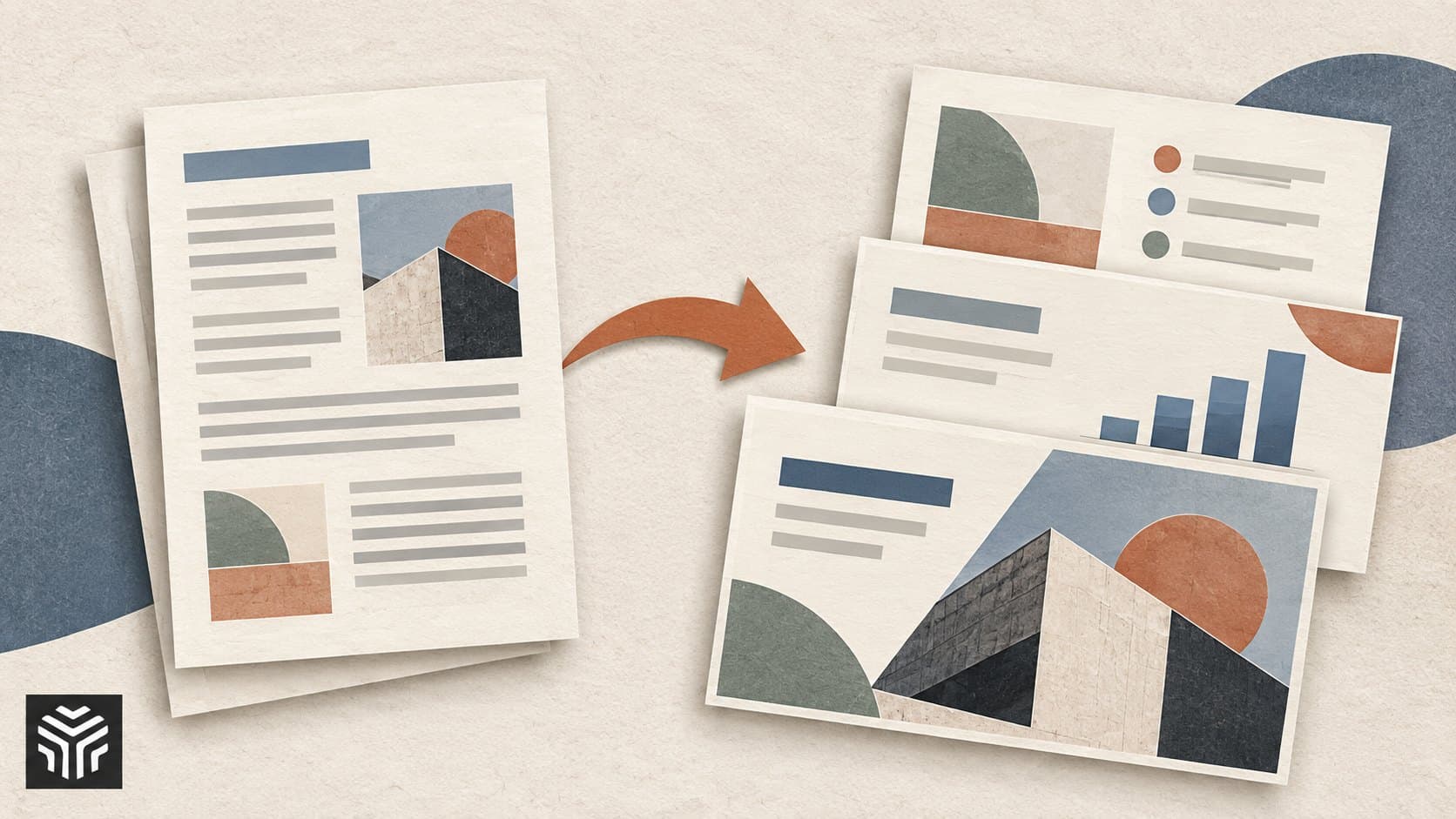
3 Best AI Tools to Turn PDFs Into PowerPoint Presentations
Plus AI, Gamma, and SlideSpeak are three options for turning a PDF into a PowerPoint presentation. Plus AI suits a workflow inside PowerPoint or Google Slides. Gamma gives you a separate workspace for shaping the presentation before export. SlideSpeak offers document-to-deck generation with PowerPoint output.
The detail that matters comes after generation: can you edit the downloaded slides? A deck that looks good in a browser may still need work before a colleague can update its numbers, change a headline, or apply the company template.
This guide compares these AI PDF to PowerPoint tools by workflow, documented limitations, and export considerations. It also explains when you need AI to create a new presentation and when a straightforward file conversion is enough.
Best AI PDF to PowerPoint tools at a glance
Tool | Where it fits | Editing workflow | Important limitation |
|---|---|---|---|
Plus AI | Turning written reports into slides within an existing presentation app | Works in PowerPoint and Google Slides | Its upload guide says source images, diagrams, and charts are not extracted |
Gamma | Reshaping content and design before exporting | Edit in Gamma, then export to PPTX | Some visual effects change during export; free-workspace exports carry branding |
SlideSpeak | Generating a deck from documents in a dedicated workspace | Edit in SlideSpeak and export to PowerPoint | Its pricing page lists file export on paid tiers; do not equate free generation with free download |
How we selected these tools: We reviewed official product pages, help guides, and plan information on September 24, 2026. Each tool documents a PDF input workflow and PowerPoint output. The recommendations are based on feature fit, not a hands-on accuracy benchmark or a measured ranking.
1. Plus AI: for working inside PowerPoint or Google Slides
Plus AI generates presentations from PDFs within PowerPoint and Google Slides. Its PDF-to-presentation page describes uploading a document and controlling how much the original text is changed.
That workflow is worth considering if your team already reviews slides in those apps. You can start with a written report and continue editing in the presentation environment you use for the finished deck.
There is an important qualification: the file-upload guide says the tool cannot extract images, diagrams, or charts from the source document. It also says uploading a file in that workflow requires a Pro or Team plan.
Best fit: A text-heavy PDF that needs a new slide structure.
Plan for: Adding essential source visuals yourself. If a report’s main argument depends on a chart, do not assume that generating the slides also transfers that chart correctly.
Plus also advertises a separate free web converter, discussed below. Its availability should not be confused with the subscription requirements for file uploads in the add-in.
2. Gamma: for shaping the deck before export
Gamma’s plan information lists PDF import and PPTX export, including on its Free plan. Its import guide lets users request either a faithful import or changes to styling and layout.
This makes Gamma an option when you want to revise the presentation in a separate workspace before handing over a PowerPoint file.
The export documentation identifies differences to expect. Some effects, such as gradient headings and frosted backgrounds, may change. It also documents editable table export and says PPTX exports from a Free workspace include Gamma branding.
Best fit: A workflow where you want to experiment with structure and design before the PowerPoint handoff.
Plan for: Opening the exported file and inspecting it. Check table cells, line breaks, and any visual treatment that is important to the presentation. Successful export is the starting point for that check.
3. SlideSpeak: for a document-to-deck workflow
SlideSpeak’s PDF-to-PPT tool documents PDF input, AI slide generation, editing, and PowerPoint export. It also advertises extracting visuals from the source PDF.
That makes it a candidate when you want to upload a report, develop the presentation in a dedicated editor, and then move the result into PowerPoint.
Treat claims about preserved visuals as something to verify with your own file. A chart can look correct on a slide while still being an image whose underlying values cannot be edited.
Best fit: A document-centered workflow where you want to review the generated deck before exporting.
Plan for: Checking download access early. The pricing page lists online sharing for the Free tier and export PDF to presentation formats on paid tiers. Confirm the current conditions for the exact tool and account you use before building the full deck.
PDF conversion and AI presentation generation solve different problems
Before picking a PDF to PowerPoint AI tool, look at the source file.
If the PDF is already a presentation, you probably want to recover its slides while keeping their appearance. If it is a report, you need to decide what belongs on slides in the first place.
Your starting point | What you need | What to check |
|---|---|---|
A slide deck saved as PDF | Reconstruct slides with minimal changes | Layout fidelity and editable elements |
A written business report | Select and organize the important points | Whether the deck preserves the report’s meaning |
A scanned document | Read the text, then build a presentation | OCR accuracy before slide generation |
A report dominated by charts | Transfer or rebuild the evidence | Values, labels, units, and chart editability |
For example, a 25-page project report might become an eight-slide management update. A PDF containing eight finished slides probably should not be rewritten into a different story unless that is what you requested.
Tell the tool which job you want. Otherwise, you may get a polished summary when you needed a faithful conversion.
What “editable PowerPoint slides” should mean
The .pptx extension does not tell you how much of a slide you can change. A PowerPoint file can contain individual text boxes and tables, or it can contain a picture of an entire page.
To check whether you can convert PDF to editable PowerPoint with AI in a way that meets your needs, open the result and try four things:
Rewrite a heading. You should be able to select the text and type a replacement.
Change a table value. Confirm whether the table contains individual cells or is a flat image.
Move an illustration. Check whether it is separate from the surrounding text.
Update a chart value. If that requires replacing a picture, the chart is not editable as chart data.
A presentation may pass the first three checks and fail the fourth. That can still be acceptable if you only need to change wording. It is less useful for a monthly report whose figures change every cycle.
Test the parts your team actually updates. “Editable” is useful only when it covers the edits you need.
How to turn a PDF into a PowerPoint with AI
1. Start with the right PDF
Use the final version of the document and remove unrelated appendices if they are outside the presentation’s scope. Check that the text can be read and that key tables are clear.
For a scan, inspect the recognized text before generating slides. A mistaken decimal point will not become more accurate when it appears in a polished chart.
2. Define the audience and decision
“Make a presentation” leaves too many choices open. Tell the tool who will see it, how long you have, and what the audience needs to understand or decide.
A project sponsor may need a short update on delivery, cost, and decisions. An implementation team may need the same report turned into a detailed explanation of dependencies and next steps.
3. Approve the outline before the design
Ask for a slide outline first. Review the order and remove slides that repeat the same point. Check whether the proposed headings capture the report’s conclusions accurately.
This is the cheapest point to fix the story. Redesigning a finished deck is more work than changing an outline.
4. Identify the evidence that must survive
List the numbers, dates, qualifications, and visuals that must be included. If a result is preliminary, that qualification belongs on the slide too.
Ask for source page references, but check them. If the product does not support reliable citations, maintain a short manual record linking important slides to the relevant PDF pages.
5. Export a sample before finishing
Generate a small section, download it, and open it in PowerPoint. Check editing behavior and appearance before investing time in the rest of the deck.
Use the same sample when evaluating different tools. Our guide on how to compare AI tools explains how to assess output quality, practical limits, and cost consistently.
A prompt for turning a PDF report into a presentation
Use this in a tool that accepts custom instructions. Adjust the slide count and audience to match your assignment:
Turn the attached PDF report into an eight-slide presentation for a management meeting. The audience needs to understand progress, risks, and the decisions required.
First propose an outline with a message-based title and purpose for each slide. Wait for approval before generating the full presentation, if your workflow supports that.
Use only information supported by the PDF. Preserve dates, amounts, units, and qualifications. Do not invent performance figures or fill missing data with estimates.
Put one main message on each slide. Use short supporting points, and move background detail into speaker notes where supported.
Identify the source page for key figures. Flag any table or image you cannot read. If a chart cannot be recreated accurately, mark it for manual insertion instead of drawing a substitute.
Prepare editable text and tables where supported. List anything that will remain an image or requires manual review after PowerPoint export.
For an existing slide deck saved as PDF, change the opening instruction to: “Reconstruct the existing slides. Preserve their order and wording. Do not summarize or introduce new content.”
Example: turning a project report into eight slides
Suppose your PDF contains a project summary, milestones, budget details, risks, and recommendations. This illustrative outline could make it easier to present without following the report page by page:
Slide | Purpose | Evidence to carry over |
|---|---|---|
1. Project status and decision needed | Explain why the meeting matters | Report’s stated status and requested decision |
2. Progress since the last review | Show what changed | Completed deliverables and dates |
3. Upcoming milestones | Establish what happens next | Milestones and dependencies |
4. Budget position | Explain the current financial picture | Actual and forecast figures with their periods |
5. Main delivery risks | Focus attention on uncertainty | Risks and stated mitigations |
6. Available options | Present the choices | Alternatives documented in the report |
7. Recommendation | Explain the proposed action | Supporting evidence and qualifications |
8. Owners and next steps | Make the follow-up clear | Named owners and deadlines, if provided |
This is a planning example, not output from a tested tool. If the PDF does not identify owners or offer alternatives, flag those gaps rather than asking the generator to make them up.
Free AI PDF to PowerPoint converters: what is included?
Free access can mean a free conversion, a limited number of generations, or an online preview. Check the download step before assuming it includes the file you need.
Option | What the official pages say | What to verify |
|---|---|---|
Plus AI’s separate web converter | Advertised as free, with no sign-up or payment required and a PowerPoint download option | That the output and usage allowance suit your file; the add-in has separate plan requirements |
Gamma Free | PDF import and PPTX export are listed; free-workspace exports include branding | Generation allowance, branding, and the exported layout |
SlideSpeak Free | Pricing lists online sharing and sign-up credits; file exports appear on paid tiers | Whether your specific conversion route allows downloading without an upgrade |
Plus AI describes its separate free workflow on the PDF-to-PPT converter page. For the other two, check the Gamma and SlideSpeak plan pages linked above. Access terms can change.
If you are also deciding whether to consolidate subscriptions, read our comparison of all-in-one AI platforms vs separate subscriptions. For this task, confirm that the service includes document input and usable PowerPoint output, not just access to a particular model.
Frequently asked questions
Can AI convert scanned PDFs to PowerPoint?
Some workflows support scans, while others need searchable text or a separate OCR step. Check the tool’s current support and test one page first. Review names, amounts, and table entries before generating the complete deck.
Will the PowerPoint look exactly like the PDF?
Do not assume so. AI presentation generation can reorganize content and apply a new design. If you need the original appearance, choose a conversion or reconstruction workflow and inspect the exported slides against the PDF.
Will charts be editable after export?
Not necessarily. An editable slide can contain a chart saved as an image. Open the file in PowerPoint and check whether you can change the chart’s data, not just resize it.
Can an AI presentation maker from PDF preserve every fact?
A generated deck needs a factual review. Check figures, time periods, units, and any uncertainty in the source. Summarizing a sentence can accidentally strengthen its claim, such as changing “may reduce costs” into “reduces costs.”
Which tool should you choose?
Consider Plus AI if you want to work within PowerPoint or Google Slides and your source is mostly text. Consider Gamma if you want to reshape the presentation in a separate editor before exporting. Consider SlideSpeak if its document-to-deck workflow fits your process and you have confirmed the export access you need.
Before committing, turn a short section of your own PDF into slides. Open the PowerPoint, change a heading, update a number, and compare the claims with the original document. Those checks will tell you more about fit than the appearance of the first preview.
Keep reading
4 Best AI Tools to Compare Two PDF Documents
Compare Adobe Acrobat, ChatGPT, Claude, and Humata for reviewing two PDFs. Learn which approach suits exact edits, changes in meaning, and source checking, with a reusable comparison prompt.

How to Compare AI Tools: A Practical Guide Before You Pay
Choosing an AI tool takes more than reading a feature list. This guide shows you how to test real tasks, compare total costs, and score your options before committing to a subscription.

AI Video Repurposing: Turn One Webinar Into 5 Useful Clips
A webinar can contain several useful videos, but an automatic highlight reel still needs an editor’s judgment. This guide shows how to find five distinct clip ideas, compare AI tools, and prepare short videos that make sense without the full recording.