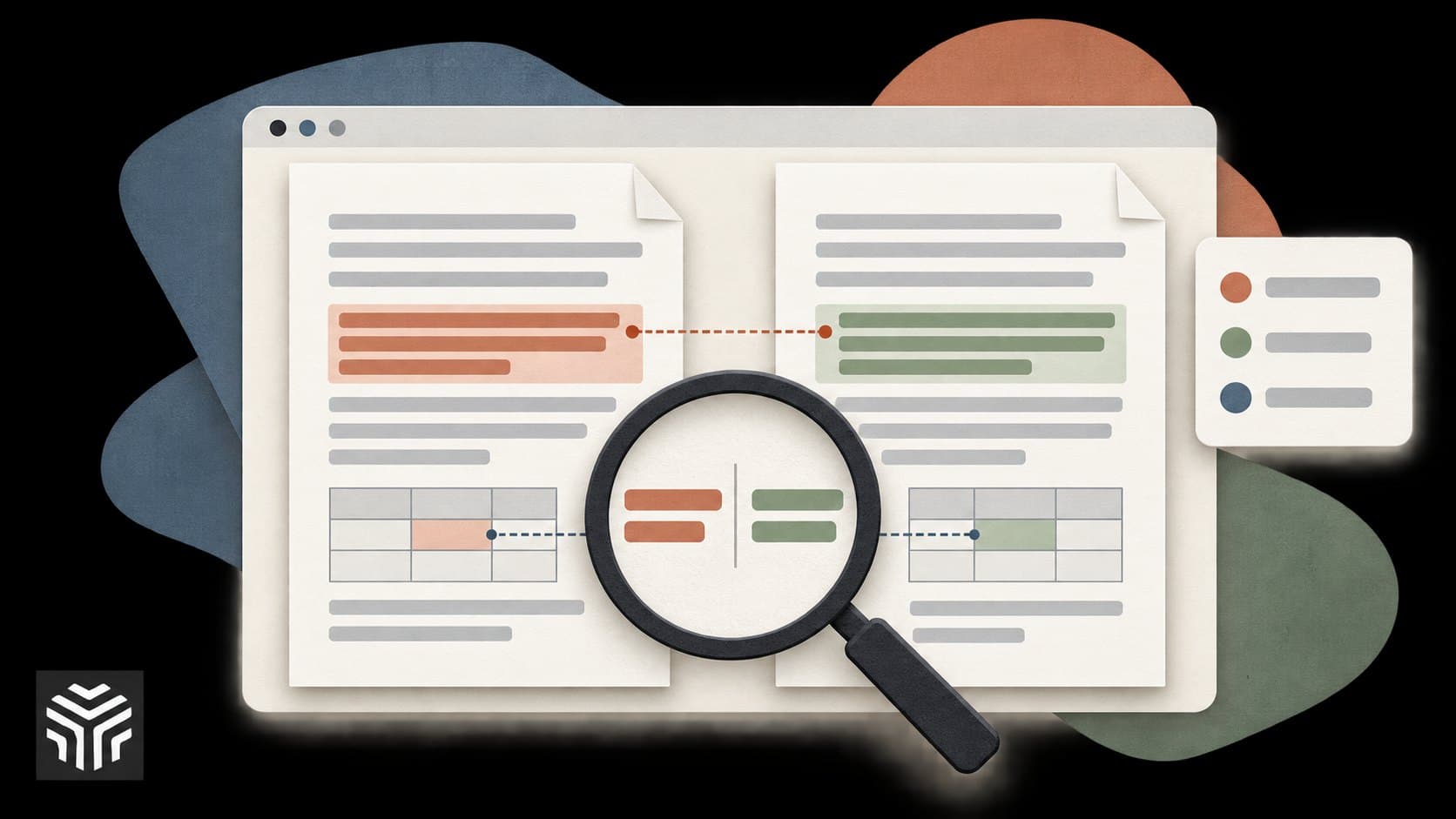
4 Best AI Tools to Compare Two PDF Documents
Adobe Acrobat, ChatGPT, Claude, and Humata are four options for comparing PDF documents. Acrobat combines a dedicated revision-comparison workflow with separate AI features. ChatGPT and Claude let you shape the comparison around your questions, while Humata focuses on document answers with source links.
The best AI tools to compare two PDF documents depend on the job. Finding every changed number in a revised report is different from comparing the scope of two supplier proposals. For exact edits, use a dedicated comparison report; use AI to organize findings and explore what the differences mean.
This guide explains where each option fits, what to check before uploading, and how to request a comparison you can verify.
Best AI PDF comparison tools at a glance
Tool | When to consider it | Comparison approach | Main limitation to check |
|---|---|---|---|
Adobe Acrobat | Reviewing revisions within a PDF workflow | Dedicated Compare Files feature plus separate AI questions across documents | Compare Files and AI Assistant are different features; confirm access to both |
ChatGPT | Building a comparison around your own questions | Upload documents and request a structured analysis | PDF image handling depends on the plan and upload workflow |
Claude | Reviewing text and visual content in supported PDFs | Ask questions about uploaded files | Visual processing has page limits |
Humata | Reviewing documents with traceable answers | Document questions with source-linked citations | Page allowances and OCR availability depend on the plan |
Selection method: We reviewed official documentation for PDF support, multi-document workflows, source checking, and processing limits on September 24, 2026. This is a research-based shortlist, not a hands-on accuracy ranking. “Best” refers to suitability for the use cases below; we have not established an overall performance winner.
1. Adobe Acrobat: for revisions and follow-up questions
Adobe Acrobat offers two capabilities worth separating.
Its Compare Files feature in Acrobat Pro identifies differences between document versions and produces a comparison report. Adobe documents options for text, graphics, and scanned documents. You can review changes using side-by-side or individual page views. See Adobe’s Compare Files documentation.
Separately, AI Assistant supports questions across documents in a PDF Space. Its responses can include source references that take you back to the relevant passage. See Adobe’s AI Assistant documentation.
The practical workflow is to locate revisions first, then investigate what they mean. For example, review the changed delivery section and ask how the new wording differs from the original.
Choose it when: You want revision tracking and document questions within the Acrobat environment.
Watch for: Compare Files is not itself the same feature as generative AI Assistant. Confirm which subscription includes the capabilities you need, and review the comparison report before relying on an AI summary.
2. ChatGPT: for a comparison tailored to your questions
OpenAI explicitly lists comparing and contrasting two documents among ChatGPT’s supported file-upload tasks. That makes it a practical candidate when you want a custom output, such as a table covering scope, dates, exclusions, and unanswered questions.
For example, upload two readable PDF proposals and ask for differences organized by purchasing criteria. Specify which file is which, and request supporting excerpts for each finding.
The key limitation is how the PDF is read. OpenAI’s documentation distinguishes Enterprise PDF visual retrieval from text-based retrieval on other plans. Do not assume that an embedded chart or a scanned page has been analyzed just because the upload succeeded. Check the current file-upload documentation.
Choose it when: You want to decide the comparison categories and refine the result through follow-up questions.
Watch for: A polished table can still omit a difference. Verify quotations, numbers, and any claimed page references against both originals.
3. Claude: for text and visual content in supported PDFs
Claude supports PDF uploads and can analyze both text and visual elements in PDFs of 100 pages or fewer. Its current documentation says PDFs from 101 to 1,000 pages receive text-only processing, with files over 1,000 pages unsupported.
That makes it a candidate for comparing shorter reports where charts or diagrams are relevant alongside the written explanation. Ask separately about changes in narrative, figures, and visual content so the review has a clear structure.
Anthropic recommends referring to the page numbers shown in the PDF viewer, which may differ from the numbers printed on the page. Its upload guide explains these limits.
Choose it when: Your comparison involves a mix of text and visuals within supported file limits.
Watch for: Visual understanding does not guarantee detection of every small layout change. If exact image or formatting differences matter, use a dedicated comparison view as well.
4. Humata: for source-linked document questions
Humata is built around asking questions about uploaded files. Its documented features include comparing documents and linking answers to supporting passages.
That source connection is useful when the next step is checking a finding yourself. If an answer says the two reports disagree about a delivery date, you should be able to inspect the relevant wording rather than rely on the summary alone. See Humata’s product overview.
Check the allowance against your actual workload. Its pricing page currently lists a free tier with 60 pages per month, and OCR is listed on Team and Enterprise plans rather than Free or Expert. A free allowance does not mean every document workflow is included.
Choose it when: You regularly ask questions across files and want source passages close to the answers.
Watch for: Citation links help with verification, but they do not establish that the comparison is complete. Check whether the cited passage supports the specific claim.
What kind of PDF comparison do you need?
“Compare these PDFs” can mean two different jobs.
Revision comparison asks what changed between an old file and a new one. You may need to catch a deleted sentence, a different number, or an updated diagram. A dedicated PDF comparison tool is designed to show those changes.
Content comparison asks how the documents differ in substance. Perhaps two suppliers submitted proposals with different structures. You want to compare scope, delivery dates, and exclusions, even though the paragraphs do not line up.
AI document comparison is particularly useful for organizing that second task. It can also help explain revisions found during the first. However, an AI-generated explanation should not be treated as proof that every edit has been found.
Consider this fictional example:
Original wording | Revised wording | Why the difference matters |
|---|---|---|
Delivery within 30 days | Delivery within 30 business days | The delivery window changed, despite the number staying the same. |
Includes onboarding and training | Includes onboarding | A previously listed service is missing. |
Annual fee: $12,000 | Monthly fee: $1,200 | At $1,200 per month, 12 months would cost $14,400: $2,400 more than the original annual fee, assuming no other charges or discounts. |
These are the kinds of details your comparison request should name explicitly.
How to compare two PDF documents using AI
A clear request matters as much as the tool. Use this process to avoid getting two separate summaries when you actually need a comparison.
1. Label the files clearly
Use names such as proposal-original.pdf and proposal-revised.pdf. Tell the tool which one is newer. For unrelated documents, use the supplier or report name instead.
Keep the original files unchanged so you can return to them during verification.
2. Check that the content is readable
Try selecting and copying a paragraph from each PDF. If you cannot, the file may be an image scan that needs optical character recognition, or OCR. Copy restrictions can also prevent selection, so confirm the cause before treating it as a scan.
Also inspect one table. Selectable text does not guarantee that columns, footnotes, and row labels will be interpreted correctly.
3. State what you want compared
For revised versions, ask about additions, deletions, changed numbers, dates, and responsibilities. For separate proposals, define shared criteria such as deliverables, assumptions, support, and exclusions.
Avoid asking only which document is “better.” Explain what a better result means for your situation.
4. Ask for evidence with each finding
Request the filename, a short supporting quotation, and a page or section reference where available. Tell the tool to flag missing information and unreadable passages.
Separate directly observed differences from interpretations. “Training is no longer listed” is an observation. “Training will cost extra” is an inference unless the revised file says so.
5. Verify the important differences
Check numbers, dates, exclusions, and changed commitments in the originals. For long files, review one section at a time. When completeness matters, compare the output with a dedicated revision report.
A reusable prompt to compare two PDF files for differences
Copy this after uploading the documents and replace the filenames:
Compare
proposal-original.pdfwithproposal-revised.pdf. The first file is the original; the second is the revised version.Identify additions, deletions, and substantive changes. Pay particular attention to dates, amounts, units, deliverables, responsibilities, assumptions, and exclusions.
Create a table with these columns: topic, original wording, revised wording, observed difference, possible practical impact, and source reference for each file.
Use short quotations to support each finding. Give PDF viewer page numbers or section headings where available. Do not invent references. If you cannot locate a passage, say so.
Keep observations separate from interpretations. If something is absent, label it “not found in the reviewed content”; do not assume it was intentionally removed unless the evidence supports that.
Report unreadable pages, unclear tables, and any sections you could not assess. Finish with questions that require human review. Do not claim the comparison is exhaustive.
For two unrelated PDFs, replace the version instructions with: “Compare these documents against the same criteria. Do not describe a difference as a revision or deletion.”
What if you need to compare scanned PDF documents?
A scan adds another stage to the job: reading the page correctly before comparing its contents. Blurred characters, rotated pages, and handwritten notes can make a confident answer unreliable.
Use OCR or a tool that supports the relevant visual input, then inspect the extracted text. Check a known amount, a date, and a table entry before proceeding with the full comparison. If those are wrong, fix the input first.
Scanned versions can also differ visually because of skew, shadows, or image quality. Decide whether you need to find visible page changes or differences in the underlying wording. Those tasks may require different comparison settings.
For numerical tables, compare matching rows and units explicitly. A monthly amount and an annual amount should not be treated as equivalent simply because their labels look similar.
Questions to check before paying
If you are choosing between a direct subscription and a service that bundles several models, read our comparison of all-in-one AI platforms vs separate subscriptions. For PDF work, check the bundle’s document-upload features and limits before assuming it offers the same workflow as the original app.
The relevant cost is the cost of reviewing your files, including follow-up questions and any OCR you need. Before subscribing, check:
Whether both PDFs fit within the page, file-size, and usage limits.
Whether scanned pages and embedded visuals are supported in your workflow.
Whether you can inspect sources and save a usable comparison result.
Whether the service’s data handling fits the documents you intend to upload.
Start with two non-sensitive sample files whose differences you already know. Include a changed date, a deleted sentence, and one altered table value. This gives you a practical check of the workflow before you commit to it.
For a repeatable way to assess accuracy, limits, and total cost, follow our guide on how to compare AI tools. Use the same documents and questions for every candidate.
Frequently asked questions
What is the difference between AI comparison and a PDF diff tool?
A PDF diff tool identifies changes between file versions, usually with highlights or a change report. An AI assistant can organize differences by topic and explain their possible significance. Use the first to inspect revisions and the second to investigate meaning; check the original passages before acting on the explanation.
Can ChatGPT compare two PDF files?
Yes. Comparing documents is a supported file-upload use case. Upload both PDFs and specify the comparison criteria. Check how your plan handles PDF images, and verify important findings in the originals.
Can you compare two PDFs with AI for free?
For small tasks, potentially. ChatGPT offers file uploads on its Free plan with usage limits, while Humata has a limited free allowance. Check current limits and whether your particular task requires paid features such as OCR.
Can AI find every difference between two PDFs?
Do not assume so. An answer may summarize major changes while missing a small edit, a footnote, or a table entry. For a detailed revision check, combine a dedicated comparison report with human review.
How do you compare PDFs side by side?
Use a PDF comparison feature that displays both versions and marks changes. Acrobat supports this workflow. A chatbot’s side-by-side text table is useful for explanation, but it is different from a visual comparison of the original pages.
Which tool should you choose?
Start with the result you need. For highlighted revisions, consider Acrobat’s Compare Files workflow. For a comparison organized around your own questions, consider ChatGPT or Claude, subject to their PDF processing limits. For source-linked questions across documents, consider Humata.
Whichever you choose, ask for evidence beside each finding. A comparison becomes useful when you can open the two files, check the passages, and decide what needs attention.
Keep reading
3 Best AI Tools to Turn PDFs Into PowerPoint Presentations
Compare three AI tools for turning PDF reports into PowerPoint presentations. Learn how generation differs from conversion, what editable export really means, and how to check your slides before sharing.

How to Compare AI Tools: A Practical Guide Before You Pay
Choosing an AI tool takes more than reading a feature list. This guide shows you how to test real tasks, compare total costs, and score your options before committing to a subscription.

AI Video Repurposing: Turn One Webinar Into 5 Useful Clips
A webinar can contain several useful videos, but an automatic highlight reel still needs an editor’s judgment. This guide shows how to find five distinct clip ideas, compare AI tools, and prepare short videos that make sense without the full recording.